 CueWeek
A Social Media Planner You Can Call From Claude via MCP
Since version 2.3.0, CueWeek ships an MCP server. Claude and Codex on your Mac can read your week of posts, check your profiles and save a brand voice.
Since version 2.3.0, you can ask an AI assistant about your CueWeek plan. Claude or OpenAI’s Codex on your Mac connects to CueWeek through MCP and answers the questions a planner should answer: what goes out this week, which profiles are connected, what is missing. You still plan posts in CueWeek. The assistant reads the plan and walks you through setup; it never publishes on its own.
What MCP means here
MCP (Model Context Protocol) is a standard way for an AI assistant to talk to an app. The app exposes a list of tools, and the assistant picks the right one when you ask a question. CueWeek’s MCP server is local: the assistant starts it on the same Mac where the app runs. That is why it works with Claude Code, the Claude app and Codex on your Mac, and not with ChatGPT in a browser tab.
What the assistant can read
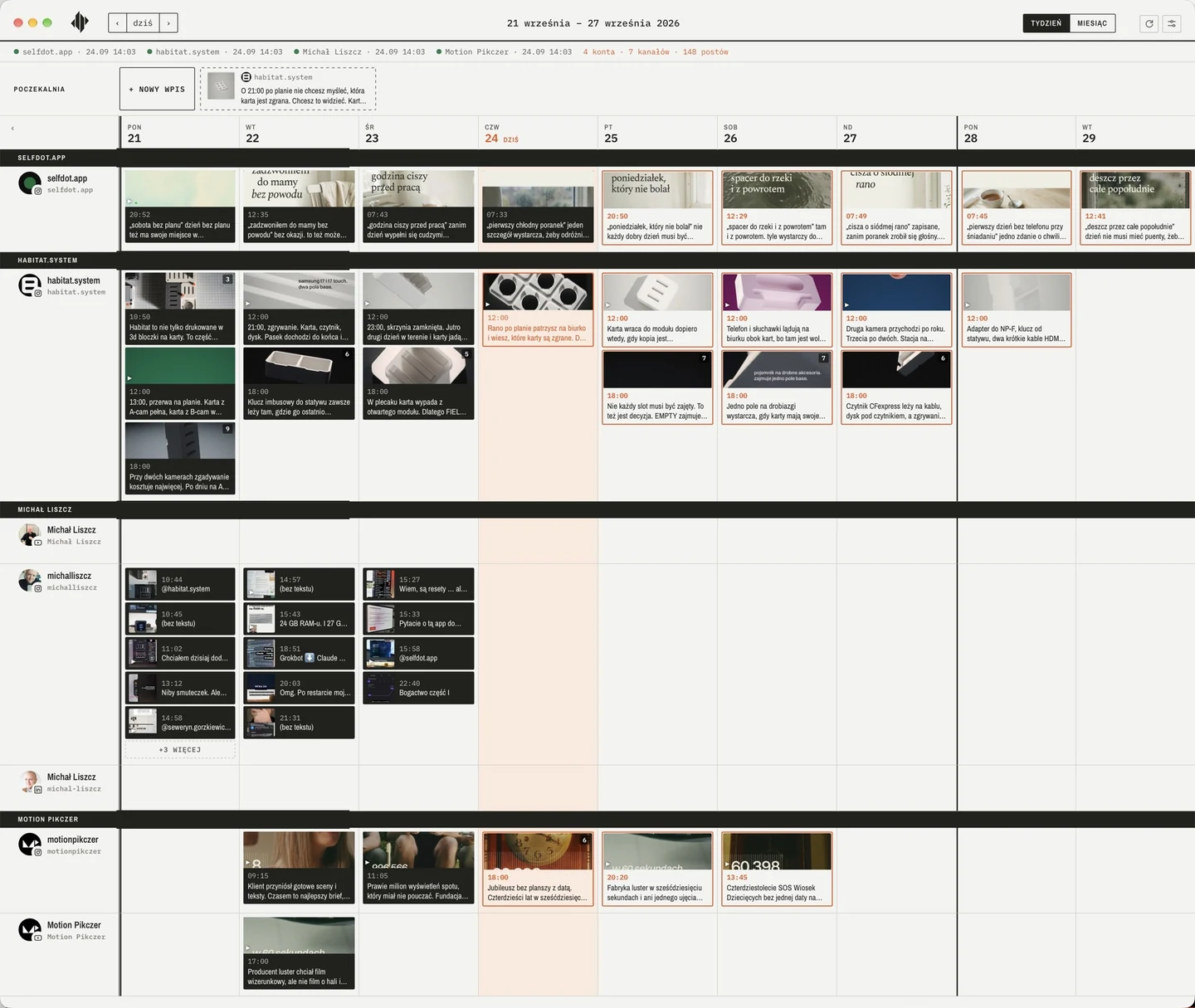
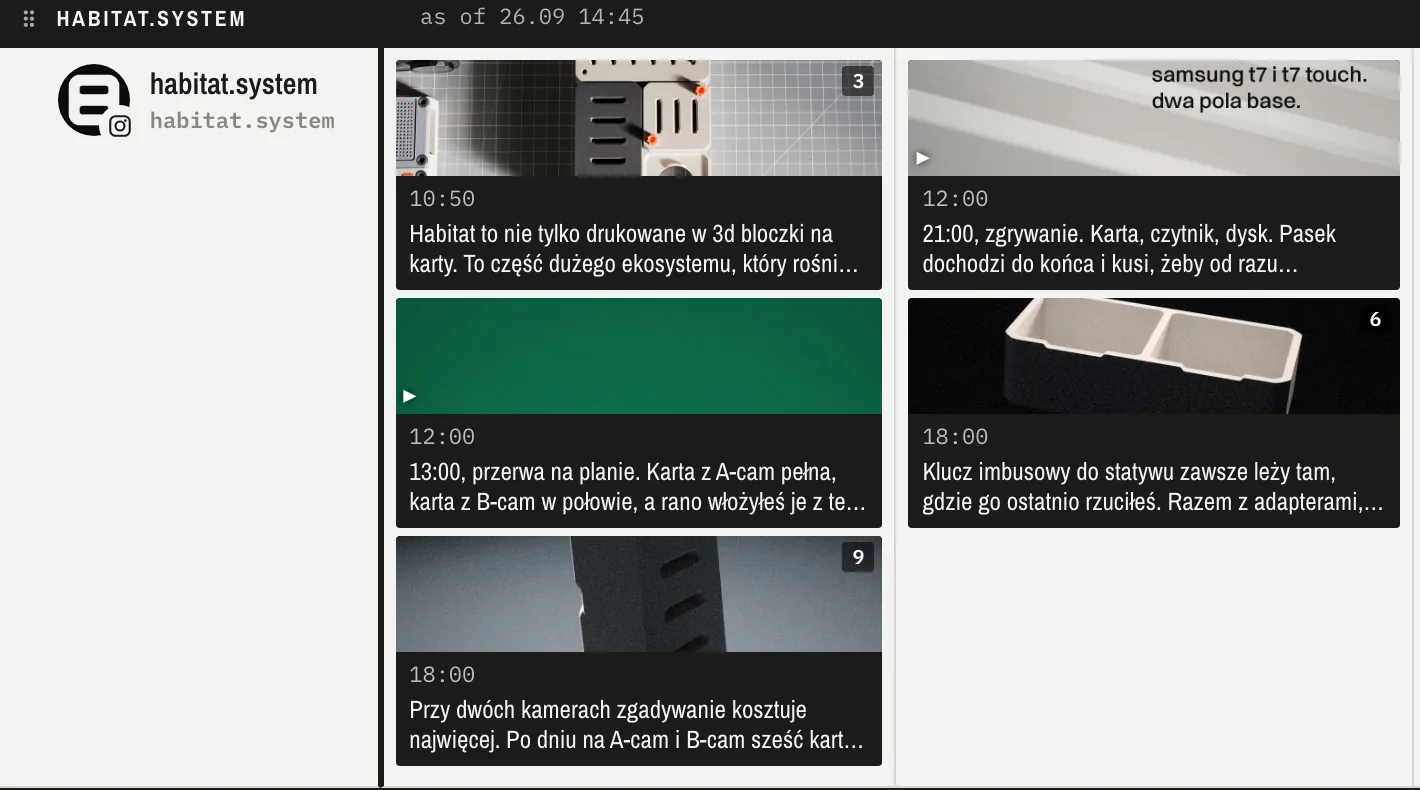
- Your week. Published, scheduled and draft posts from every brand in a chosen week, plus undated drafts. Ask about this week, next week or last week.
- Setup status. Connected Buffer accounts, brands with their channels, post counts and sync problems.
- Your profiles. Paste links to Instagram or LinkedIn, and the assistant tells you whether CueWeek already sees each profile and what Buffer needs to connect it.
- A fresh sync. The assistant asks CueWeek to pull new data from Buffer and waits for the result.
- Brand voice. It reads a brand’s latest published posts, asks a few questions and saves a style note. CueWeek’s caption generator then writes in that voice. It shows you the text and waits for a yes before saving.
What it will not do
It does not create, edit or delete posts; the server has no tool for that. It never asks for passwords or one-time codes: you sign in yourself in the browser, and the Buffer connection token stays in the macOS Keychain. It does not quote Buffer plan prices either; it opens Buffer’s pricing page instead.
How to connect it
- Move CueWeek to Applications and open it.
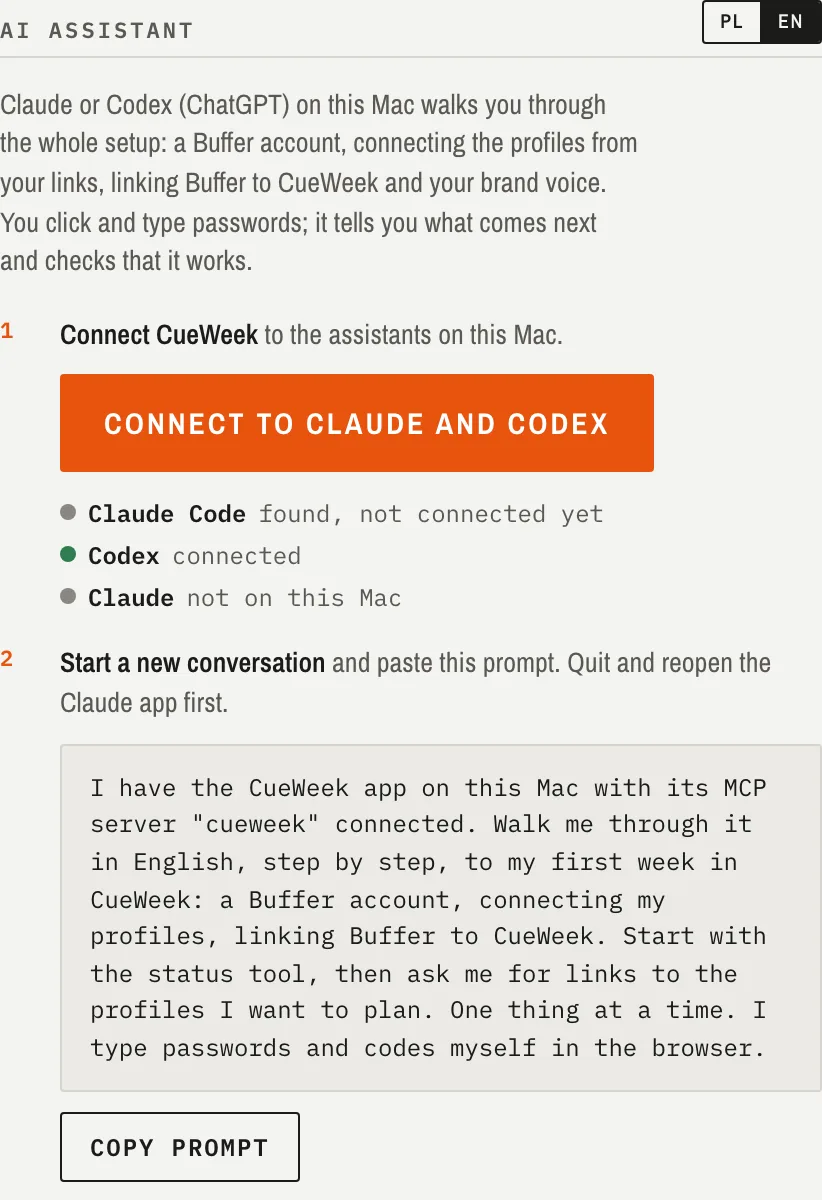
- Go to Settings, then AI assistant, and select EN.
- Click “Connect to Claude and Codex”. CueWeek adds its MCP server to the supported assistants it finds on this Mac.
- Click “Copy prompt” and paste it into a new conversation in Claude or Codex. Quit and reopen the Claude app first.
The assistant starts by checking your setup and guides you one step at a time. After that, just ask: “what do I have scheduled next week?”
The CueWeek beta is open and free. If you would rather ask about your week than click through calendars, join the beta.
Questions and answers
Can the assistant publish posts through MCP?
No. CueWeek's MCP server has no tool that creates, edits or deletes posts. The assistant reads your plan and guides setup; you plan posts in the app.
Does it work with ChatGPT in the browser?
No. The server runs locally on your Mac, so it works with OpenAI's Codex, Claude Code and the Claude app installed on that same Mac.
Does the assistant see my Buffer password?
No. You type passwords and codes yourself in the browser. CueWeek keeps its connection token in the macOS Keychain.