 CueWeek
Reorder Social Media Accounts in Your Weekly Planner by Dragging
A handle on each account bar in CueWeek moves the whole account with its channels. The order you set survives a restart and every data refresh.
To reorder social media accounts in CueWeek, grab the handle on an account’s dark bar and drag it up or down the week view. The whole account moves together with its channels, and the order stays put after you quit the app.
Why the default order gets in the way
Accounts arrive from Buffer in the order you once connected them. That order has nothing to do with how you work. My personal account sat at the top, and the brand I plan every day sat below it, so I scrolled past one to reach the other. With four accounts it is a small thing, but it repeats every time the week opens.
How the handle works
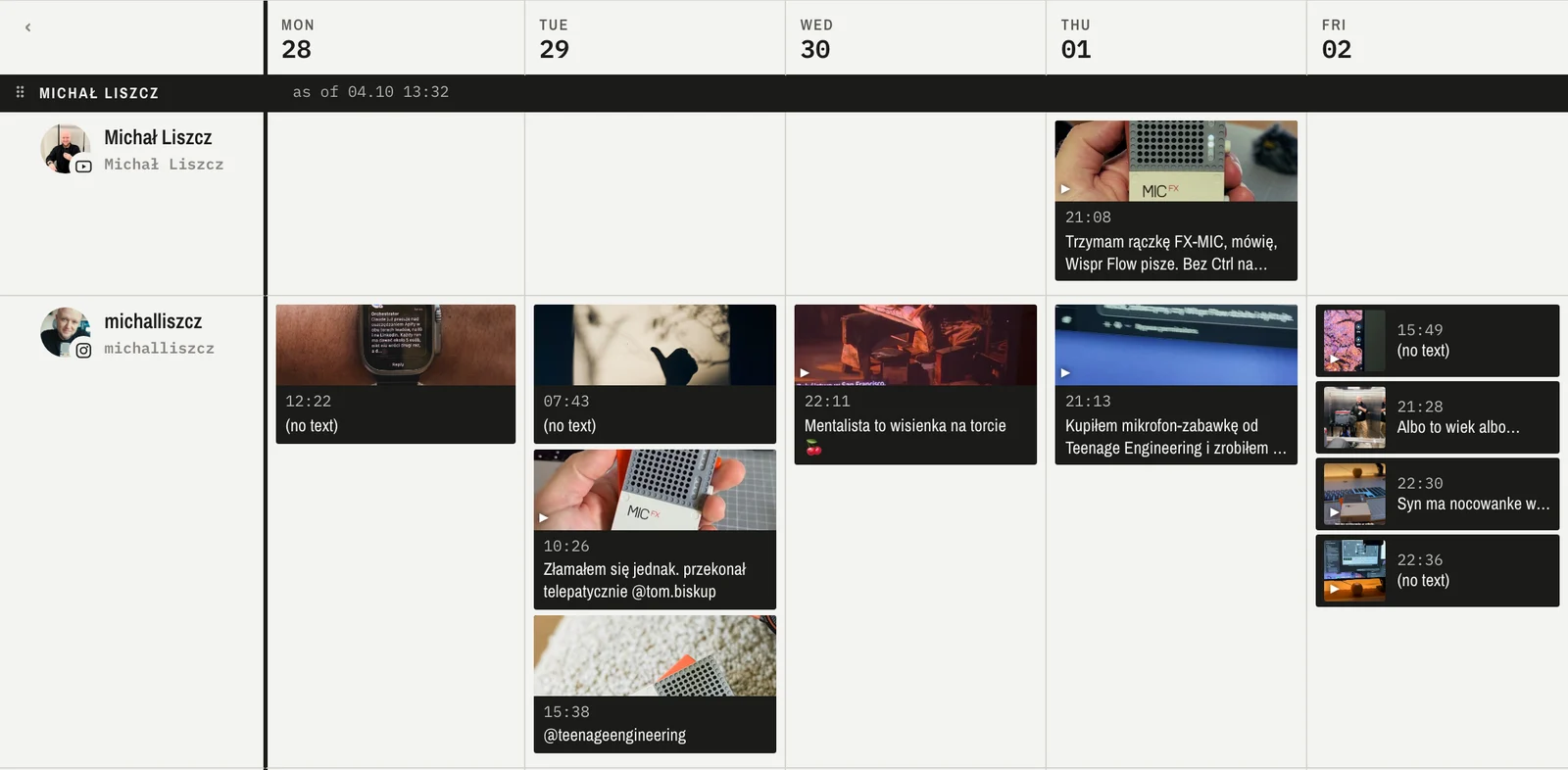
Every dark account bar has a ⠿ handle at its left end. It is always visible, so there is nothing to hunt for with the pointer. Drag the bar up or down and the other rows shift as you go. The whole account block moves: the bar with the name and every channel under it. You cannot accidentally pull a single channel into another brand.
Channels inside an account have their own handle too. It shows up next to the channel avatar when you hover over the row, and it reorders channels within that account only.
The order sticks
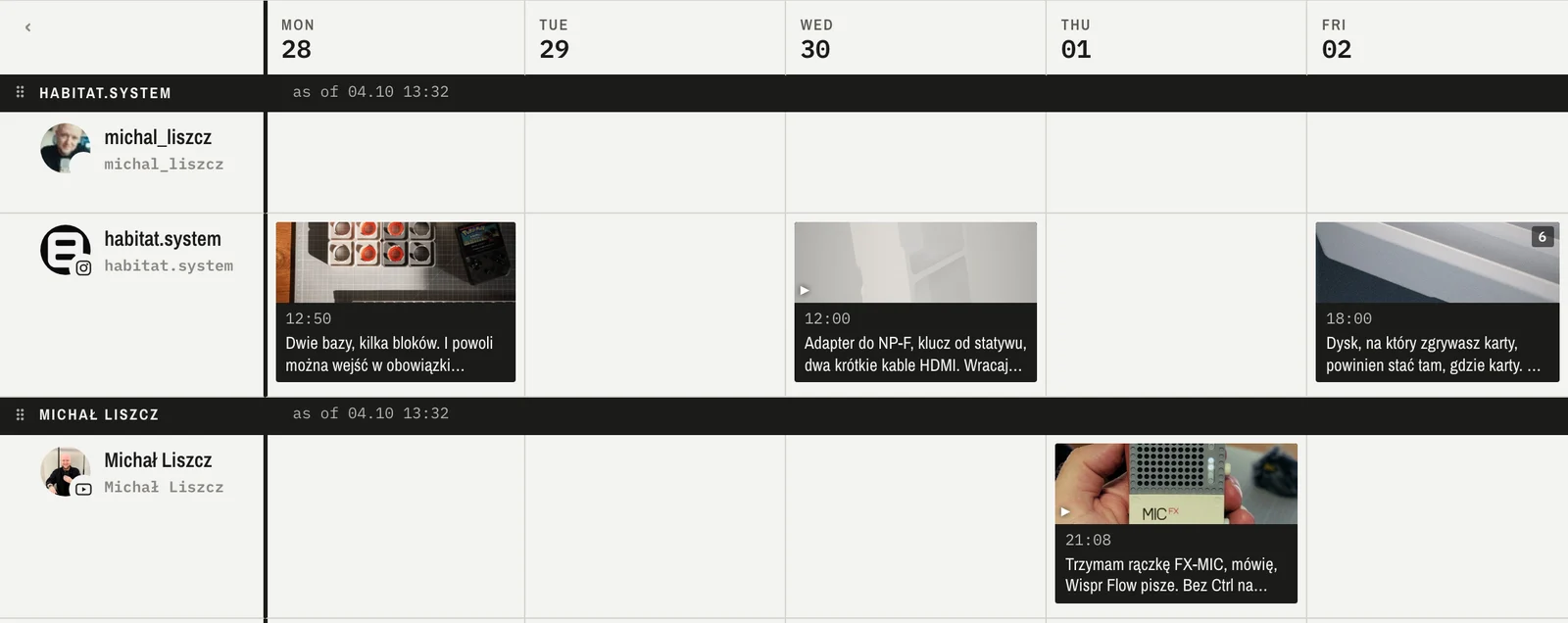
CueWeek saves the account and channel order locally on your Mac, in the file that holds your account settings. Every time data refreshes from Buffer, the app lays the rows out by that saved order. After a restart the week view opens in your layout, not in connection order. Reordering changes nothing in your posts or in Buffer. It is only how your view is arranged.
The CueWeek beta is open and free. If you want your main brand at the top of every week, join the beta.